![Logo Fancy shading@2x.png]](https://creator.myminifactory.com/hs-fs/hubfs/Logo%20Fancy%20shading@2x.png?height=40&name=Logo%20Fancy%20shading@2x.png)
With the MyMiniFactory Competition Builder, we provide a set of default rules and a step-by-step structure to help you get started quickly. Want to make it your own? You can fully customize each element to match your creative vision and goals. Define your theme, engage your audience, and let the painting begin!
Before you get started setting up your new Competition it will be beneficial to prepare these materials:
-
Competition Poster - Dimensions: 1920px * 640px, Max 2MB.
- Background image - Dimensions: 1920px * 1080px, Max 2MB.
- 1x image for each category (for Multi-Category Competitions) - 1920px * 500px, Max 2MB.
- STL Model(s) - The 3D model(s) participants will use as the base for their painting work.
- Prize(s) - Reward for the winner(s) to motivate participation and recognize great work.
- Images for Prize(s) - Recomended dimensions 1920 px * 500 px, Max 2MB.
Follow along with the guide - Build your Competition here >
STEP 1) Navigation
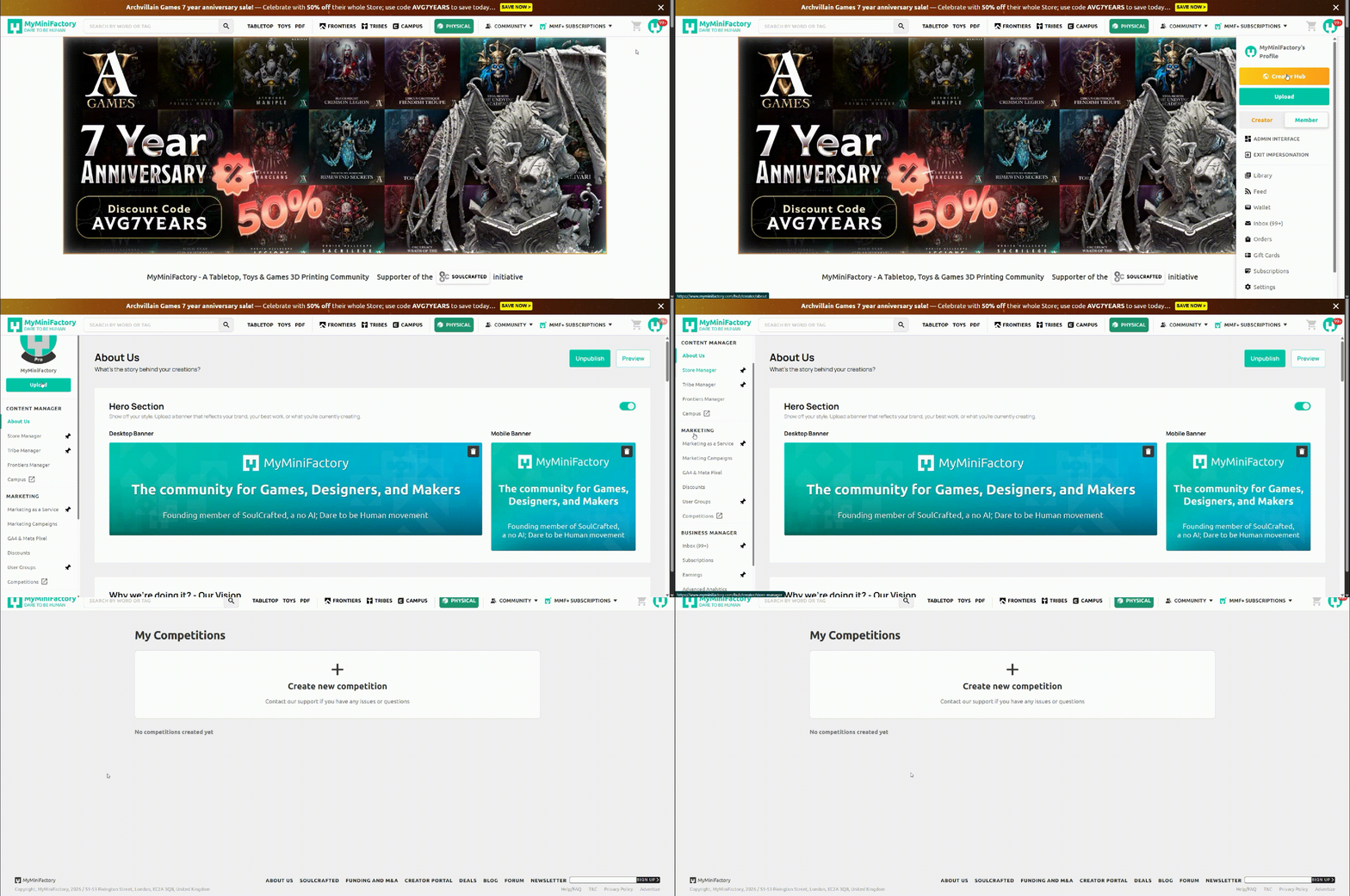
To find the Competition Builder, navigate to your Creator Hub and click Competitions. Click Create new competition to start. You will also be able to edit previous competitions and competition drafts on this page after they have been created.
STEP 2) Choose Single or Multi-Category
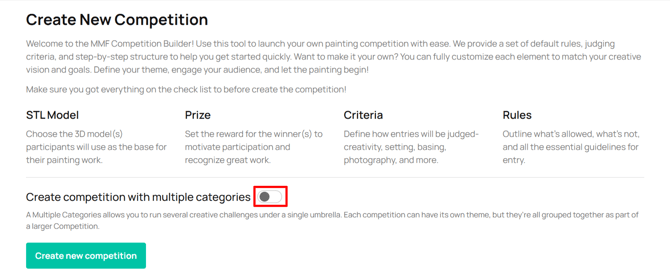
Important: Once you have selected single or multi-category, this action cannot be undone. A single-category competition cannot be converted into multi-category, and vice versa.
Your Competitions on MyMiniFactory can consist of one, or multiple categories, allowing you to focus on one creative challenge, or add more to run multiple challenges all grouped together under one Competition.
Select whether you would like to run a single or multi-category competition with the toggle, and then click the "Create new competition" button to confirm and move on to the builder.
STEP 3) Basic Information
NOTE: You can click SAVE AS DRAFT on any page of the builder and return to editing later.
Details and images
Enter your competition name and upload your competition poster and background image.
Recommended dimensions:
-
Competition Poster - Dimensions: 1920px * 640px, Max 2MB.
-
Background image - Dimensions: 1920px * 1080px, Max 2MB.
https://squoosh.app/ is a handy tool you can use should you need to quickly compress your image.
In the Competition Description section, please add relevant details about your competition. Include any information about associated campaigns, particularly if you are using the competition to promote a FronTier. 
Dates
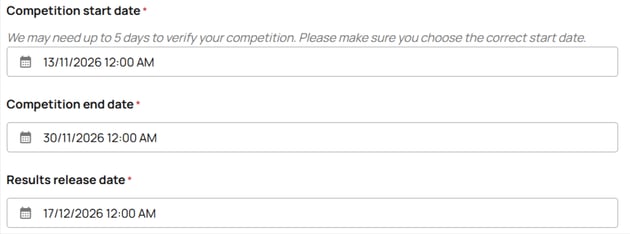
Add the start, end, and results release dates for your competition. Please note, we may need up to 5 working days to verify and approve your competition. If you have already communicated a launch date to your audience, please ensure you have built the competition well before the start date.
Setup Categories (Multi-Category Competitions Only)
In this section you can add, Modify and delete your Categories.
Click the + Add New Category to add a new category to your competition and open the category editor popup.
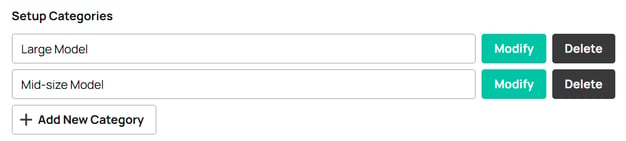
First choose your category name. The current categories you can include are:
- Large Model
- Mid-size Model
- Small Model
- Bust
- Diorama
- Warband
- Kitbash
Add a description to give more details on what the category includes, e.g. for Large Model, this category is for 70mm to 140mm miniures from my current FronTier.
Choose up to 3 themes for your category.
And upload your Category image with recommended dimensions of 1920px * 500px, Max 2MB.
Click Save Category Info when you have finished.
You will notice once you have created your new category it will appear in the Setup Categories of the Basic Information page from here you can modify and delete if needed.
Sponsors
Add any necessary information about competition sponsors. You can add brand logos and links; you can also link a FronTier here if it is associated with your competition. Recommended image resolution: 1920px * 500px, transparent background PNG.
Terms and conditions
Add the terms and conditions for your competition. Please read and then delete the text at the top of the textbox:

The rest of the default text in the terms and conditions box (starting from 1.) is legally required for all competitions run on MyMiniFactory; your competition WILL NOT be approved if this is deleted. All BOLD text will need to be updated with the relevant information. You can add any additional terms and conditions you feel are necessary.
Click NEXT STEP to move on to How to Enter.
Note for Multi-Category Competitions: After you have saved the Basic Information page as draft, or clicked Next Step, your competition structure will update. With How To Enter, Competition Prize, and Criteria and Rules for each added category. Follow the steps below for each category of your competition.
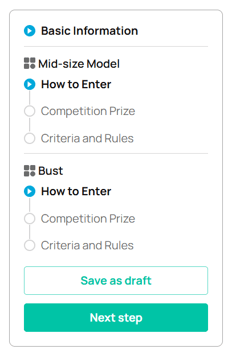
STEP 4) How to Enter
In this section you can provide instruction on how to enter your competition. The default text in the textbox is the standard journey Makers use to enter competitions hosted by MyMiniFactory. You can leave these as is or update them to better suit your competition.
Next you can attach STLs Makers can print to enter the competition, toggle the button next to Attach STL Model and click SETUP and select from the list of objects you have uploaded to MyMiniFactory.
The attached STL section is optional. You can have any selection of products (printed or non-printed) eligible for entry such as your entire Store, latest Tribes release or FronTier. Make sure to state model eligibility clearly on your competition page.
Top Tip: If you are using this competition to promote your FronTier, you may want users to download the FREE STL from the FronTier page or pre-marketing page instead of directly from the competition page to boost signups or sales. In this case, instead of adding the free STL here, you can add a link to your FronTier page in the How to Enter section.
If you do this to promote a FronTier premarketing page, please ensure the free STL is still accessible when the FronTier launches.

Click NEXT STEP to move on to Competition Prizes.
STEP 5) Competition Prizes
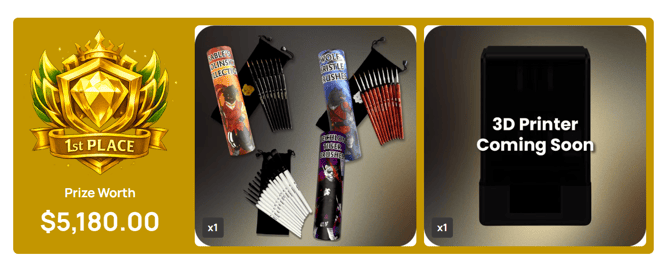
In this section you can add prizes for your competition. Click SETUP to add a prize for 1st, 2nd, and 3rd place. Prize name, $ value, and an image of the prize are required (1920 px * 500 px resolution recommended). You may also add a brief description. You can adjust the quantity if there is more than one of the same prize at the same place.
You can add up to 8 additional prizes for each place. The combined $ value total of all prizes will be tallied and displayed on your competition page.
IMPORTANT: As a Creator and host of your own painting competition, you are responsible for your own judging, prize fulfillment, and distribution, unless otherwise arranged with MyMiniFactory. It is important that you manage entrant expectations on prize shipping times to protect your brand.
Click NEXT STEP to move on to Criteria and Rules.
STEP 6) Criteria and Rules
In this section you can add the judging criteria and rules for your competition. The default text is the criteria and rules we use when MyMiniFactory hosts a competition; however, you can edit, remove, or add rules that suit your competition.
In the rules section, it's important to keep the paragraph about AI-generated images in line with our guidelines and principles.
STEP 7) Verification Process
Once you have filled out all the steps, you can click SAVE AND PREVIEW to save and see what your live competition page will look like. When you are finished, click SEND FOR VERIFICATION.
Once your competition is approved, its status will be changed to UPCOMING or LIVE on your My Competitions page. If it is not approved, our Creator Relations team will reach out to you with the necessary updates needed.

Please ensure you leave plenty of time for the approval process.