![Logo Fancy shading@2x.png]](https://creator.myminifactory.com/hs-fs/hubfs/Logo%20Fancy%20shading@2x.png?height=40&name=Logo%20Fancy%20shading@2x.png)
An important part of maintaining and growing your Tribe is interacting with your Tribers, keeping them engaged and up to date with your activities.
You can use the Tribes posting tool to interact directly with your Tribers.
Please bear in mind: Your Tribers will receive a MyMiniFactory inbox and an email notification every time you share a Post.
Navigation
To write a new post, navigate to your Tribes edit page by hovering over your profile picture, and selecting ‘Tribes’ from the drop-down menu.

This takes you to your Tribes Settings. To create a new Tribes post, select posts in the top menu and then select new post (top left).
You can learn about the full functionality of the Tribes edit page starting here.

Post Editor Features
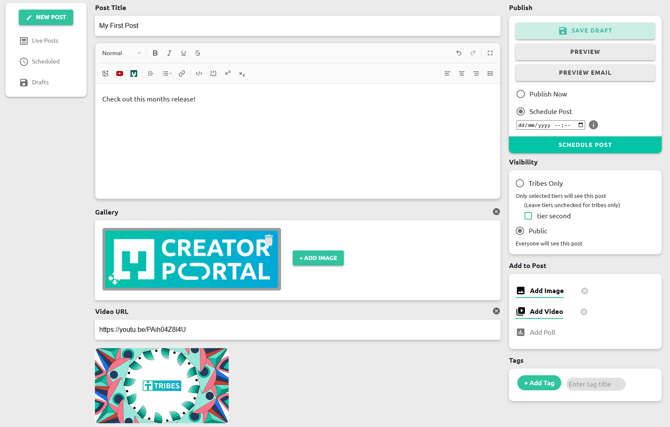
This will open up the post editor. Here you can:
- Schedule or publish your posts
- Save as a draft
- Preview posts and emails (Your Tribers will receive a MyMiniFactory inbox and an email notification every time you share a Post)
- Make your posts visible to particular Tribers
- Add text, images, videos and polls
- Add tags
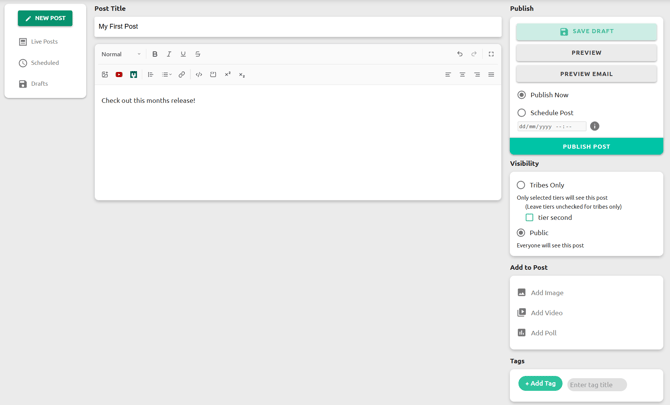
Publish
Here, you have the option to publish your post immediately or schedule it to be published at a future time and date, the button at the bottom will change according to reflect this.
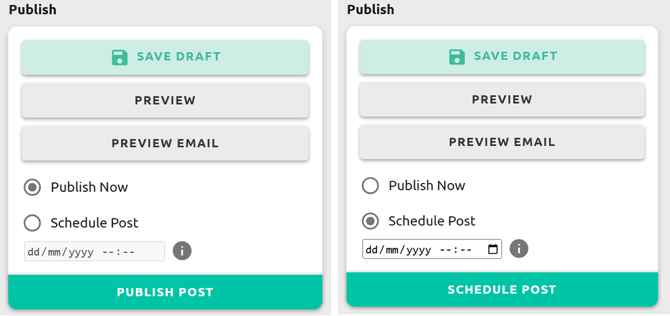
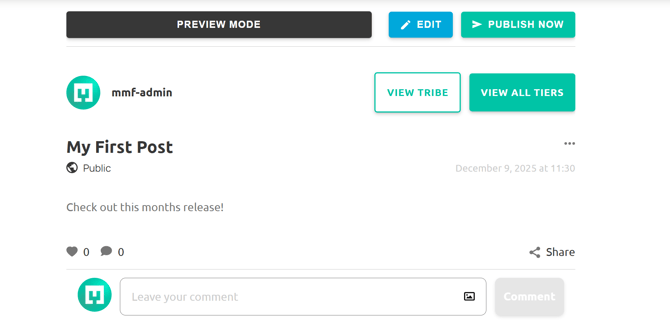
You can also save your post as a draft and preview it to see what it will look like live.
Visibility
In this section, you can choose who your post is visible to. You can set this to be just your Tribers, visible to specific Triber Tiers (by selection the tick boxes next to your tiers), or you can set it to public, which will be viewable to everyone who visits your Tribe.

Add to Post
Here you can add various media items to your posts.

- Images
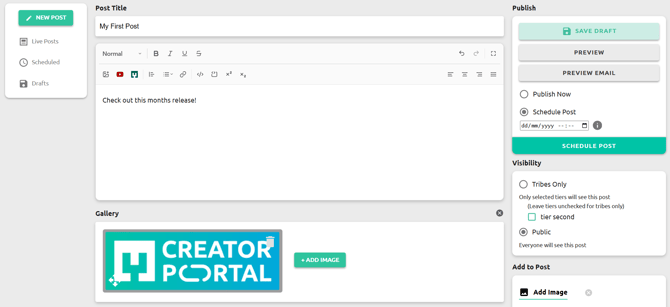
Clicking add image will allow you to add an image from your local files.

This will add images to a gallery at the top of the post; you can click the add image button to add more images.
- Videos
Clicking add video will open the video URL tab. You can enter the URL for the video you would like to add here, this will generate a thumbnail below the link.
Please note: This feature only supports YouTube videos at this time.
- Polls
You can add community polls to your post by clicking the add poll button. Here you can add a poll question and two options

To add more poll options, click enter in the bottom box. To remove options click the small cross on the right-hand side of the box.

Please note when a poll has been posted, live edits can no longer be made to the poll questions, or options.
Tags
Finally, tags can be added to a post to increase visibility on MyMiniFactory when a user searches for a keyword or a particular tag.

Here you can simply add keywords relevant to your post and then click + Add Tag.

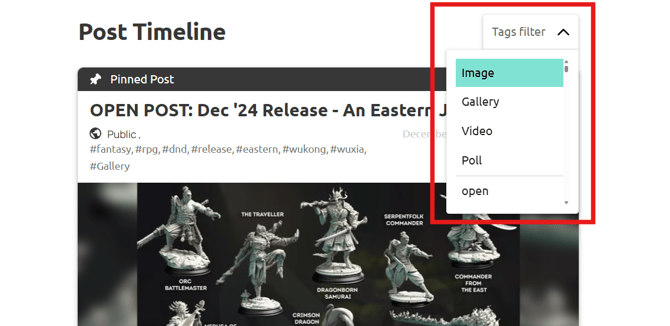
Tags can be found just above the top post on your Tribes page on the left-hand side. Tribers can select these tags to filter your posts.
How to pin a post?
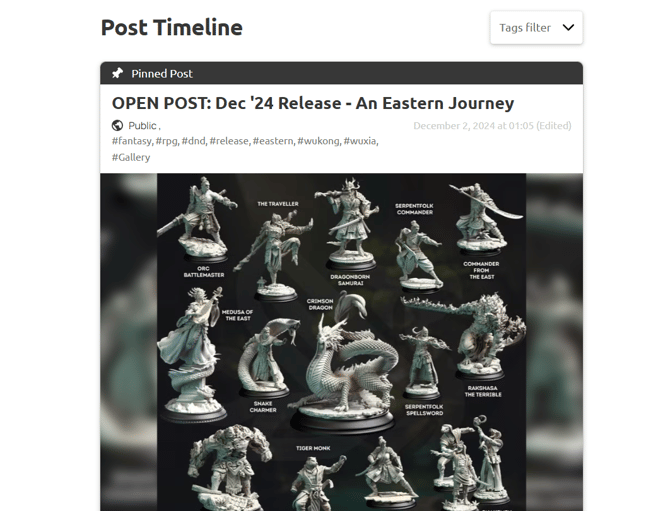
Once you have created a Tribes post, you can pin it to the top of your profile. Pinned posts will have a black Pinned Post bar at the top.
Pinning a post is a quick and simple process:
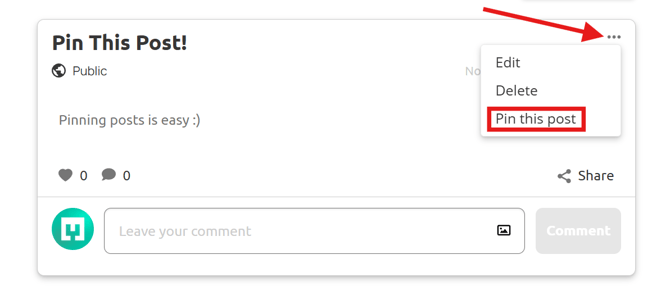
On your Tribes page, find the post you would like to pin and click the 3 dots in the top right-hand corner of the post and select Pin this post from the popup menu.
Please note: You are only able to pin one post at a time.
Examples
There are several ways you can use the Tribe’s posting tool to keep your Tribers engaged. If you are struggling for ideas, you can use the Tribes Feed to see how other Creators are making use of this tool.
Here are a few examples of how Creators use the Tribes Posting tool.
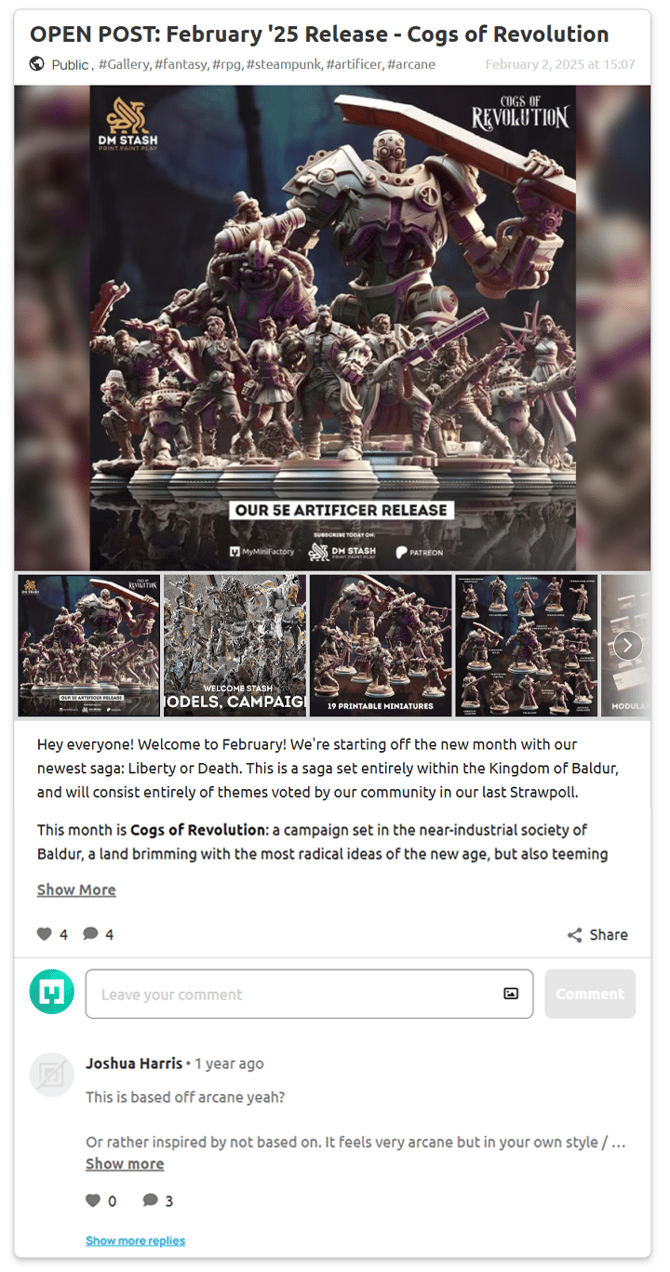
You can use posts to show off all the information about your current release, informing Tribers and keeping them excited as we all showing potential new Tribers what they will unlock this month as DM Stash is doing here.
Saved Posts
Once you have created or scheduled a post, it will appear under the relevant tab in the posts section of the Tribes Edit Page.


If you are having difficulties with the Tribes Posting features or would like more advice, please contact your Creator Relations Representative or write to the team at creator-relations@myminifactory.com.
Posts are an excellent way to engage with your community and keep them updated with your WIPs, competitions, and upcoming releases, increasing sign-ups and reducing drop-outs.
They are tools to show new potential Tribers how active your Tribe is and show them why they won’t want to miss out on being a part of what you’re building!
Please note: This link will only work if you are logged in to MyMiniFactory and have set up your Tribe.