![Logo Fancy shading@2x.png]](https://creator.myminifactory.com/hs-fs/hubfs/Logo%20Fancy%20shading@2x.png?height=40&name=Logo%20Fancy%20shading@2x.png)
- What is Insights?
- How to access Insights
- How To Manage Annotations
- Learn More - Insights: Getting Started & Creating Segments
What is, and how do I create a new Analysis?
Inside the Insights Tool an Analysis is your main view for analyzing your data. It combines a widget with a title, selected Segments and products, Annotations, filters, and other settings. It organizes data for in-depth exploration and comparison. Create new, update, and save Analyses for quick access.
Creating multiple Analyses is beneficial because it gives you the flexibility to explore different Segments, configurations, layouts (graph or table), and time frames without losing track of your progress.
This flexibility allows you to manage ongoing data exploration while ensuring your settings and preferences are saved for future use.
- Open the menu: Click on the three vertical lines in the top left, next to Default Analysis
- Create New Analysis: Click on "New Analysis" to start a fresh setup. (You can also click on the new page icon next to the three vertical lines).
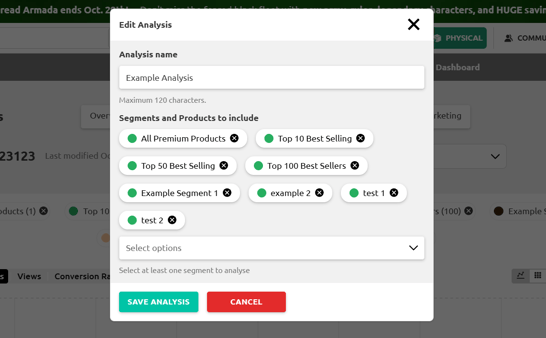
- Name the Analysis: Select a descriptive name.
- Select Segment and/or products to include: Choose the Segments and products you wish include in your analysis. You can easily modify your selection later.
- Finish Creating Your Analysis: Click on "Confirm".
- View Results: View and adjust the Analysis as needed using charts and data views.
Analysis Management Options
Besides creating a new Analysis, the menu offers several options for managing your Analysis:
- Rename Analysis: Rename the current Analysis. Additionally, you can rename the Analysis directly by clicking on its title, editing it, and then pressing Enter. Don't forget to save to ensure the updated name is preserved.
- Save Analysis: Save the current Analysis for future use.
- Save As: Save the current Analysis with a new name and settings, while leaving the original Analysis unchanged.
- Load Analysis: Load a previously saved Analysis.
- Delete Analysis: Delete the current Analysis.

Next to the three vertical lines, you will find convenient icons that allow you to quickly:
- Create New Analysis
- Load an Existing Analysis
- Save the Current Analysis
These icons provide an easy, accessible way to manage your Analyses without navigating through the menu options.
Interacting with the Analysis Widget
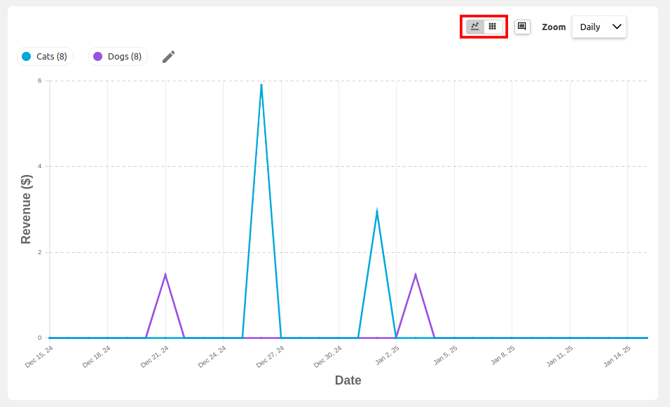
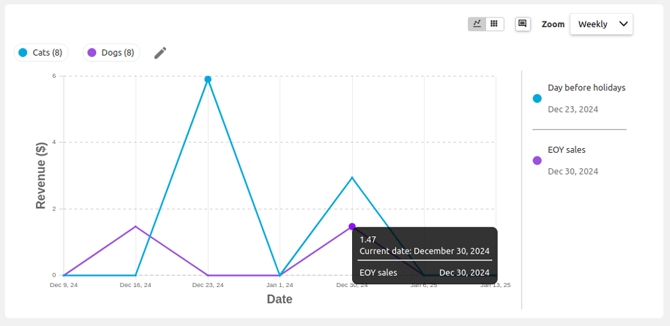
The x-axis represents the dates when products were sold, while the y-axis shows revenue in USD.
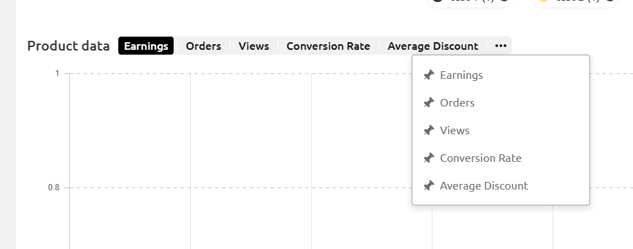
The default view shows Earnings, however you can change the metrics displayed from the Product Data Menu.
Date Filter
When you change the date range using the date selector, the widget updates accordingly. The available options are:

On the top right corner of the widget, you’ll find the following options:

Widget View Toggle
You can switch between visualizing data in a graph or table format.
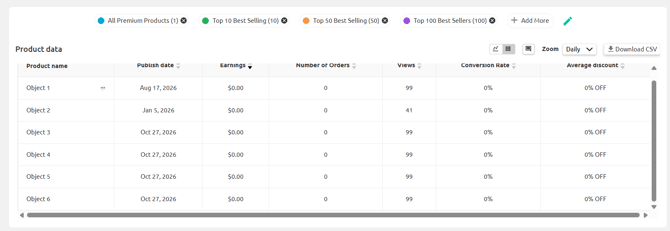
Top Tip: With the correct Analysis setup you can see the Metrics for every single product in your Store in a table view!
The easiest way to do this is to create a single Segment containing all of your products and add this by itself into a Custom Analysis.
Annotation and Event Display Options (More details on this below)

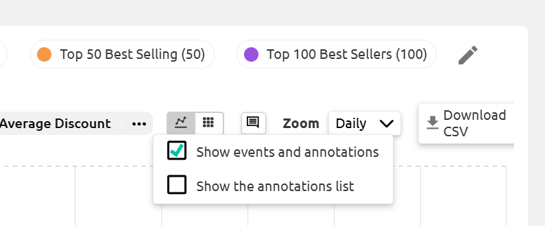
These options will allow you to customize how Annotations appear on the chart. By ticking Show Annotations, you’ll be able to view existing Annotations and create new ones by clicking on any data point on the graph. These Annotations are only visible in Graph View.
Ticking Show The Annotation List will open a list to the right of the graph. The side list is visible in both Graph and Table View when there are Annotations to view in the date range.
Zoom Options
By interacting with this field, you can adjust the data view to daily, weekly, monthly, or yearly for better granularity.

The graph can become cluttered when the "All Time" filter is selected due to the large volume of data displayed. You can adjust the visual scale by pressing "Control" and scrolling your mouse wheel. Scrolling up zooms in for detailed views, while scrolling down zooms out for a broader overview. Note: The zooming action doesn’t affect the daily, weekly, monthly, or yearly dropdown settings, which remain fixed.
Segment and Product List
Clicking the pen icon allows you to modify the list of Segments attached to the Analysis. In this case, the buttons labeled "Cheap Products (9)", "Pricey Products (9)", and "Alchemist (7)" represent Segments.

The "+ Add More" button opens a list of available Segments and products you can add to the Analysis, including predefined and custom ones which you can select. You can remove Segments and products from an Analysis with the "x" button.
Interpreting the Graph
In this example, we see that products related to cats generated higher revenue than those related to dogs over the same period. This insight suggests that the Creator may want to focus on improving dog-related content, increase advertising for dogs, or concentrate more on cat-related content, which appears to be their stronger performing category.
How To Manage Annotations and Events
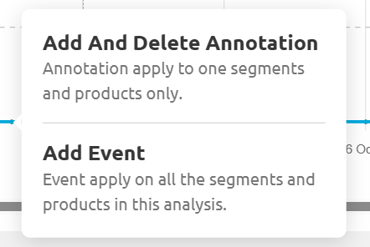
Annotations and Events are notes added to an Analysis to track important dates, events, or observations. An annotation will apply to only a single Segment or product. An Event will be applied to all Segments and products within the Analysis.
Prerequisites:
- To add an Annotation to a segment, the Segment must already be created. Annotations cannot be added during creation.
Adding Annotations Using The Segment Editor
-
Access the Segment: Open the "Manage Segments" dropdown, and click the Edit icon next to the desired Segment.

-
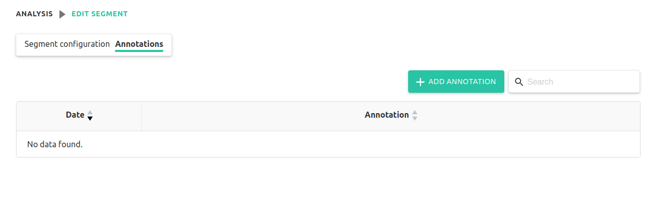
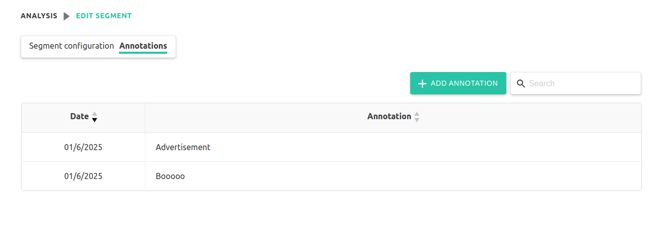
Open the Annotations Tab: Navigate to the "Annotations" tab after the page loads.
-
Search or Filter: Use the search bar to find existing Annotations by title, tag, or date.
-
Add a New Annotation: Click "Add Annotation" and provide the date and description.

-
Save Your Annotation: Save to display it alongside your Analysis for added context.
Adding Annotations and Events Directly on the Chart
-
Enable showing Annotations: click on the Annotations icon button then check the“Show Events and Annotations” checkbox.
-
Hover over a Data Point: Place your cursor over a data point on the chart.

- Create an Annotation: A popup will appear, offering the option to create a new Annotation or Event.
Follow the process through to quickly add your Annotation or Event to the Analysis.
- Create an Annotation: A popup will appear, offering the option to create a new Annotation or Event.
-
Save the Annotation or Event: After creating an Annotation, it will be added to your Segment and displayed on the chart only if the chart is configured to show Annotations.
Note: You can easily delete an Annotation or Event by clicking on them and then clicking on the Trash Can icon from the popup menu.
View Your Annotation or Event
Once you have created the Annotation or Event, you can view it in multiple places:
- In the Edit Segment → Annotation Tab, listed by date and description (for Annotations only).
-
Next to your widget by clicking on the icon and selecting Show Annotation List. (for Annotations only).


-
On the graph as large dots for Annotations and as a calendar symbol for Events. Hover over the data point to view.
